How to Install Gorilla Tag Mods on Meta Quest Without a PC (2026)
Learn how to mod Gorilla Tag directly on your standalone Meta Quest 2 and Quest 3 without needing a desktop computer. Mobile VR Station setup and APK methods.
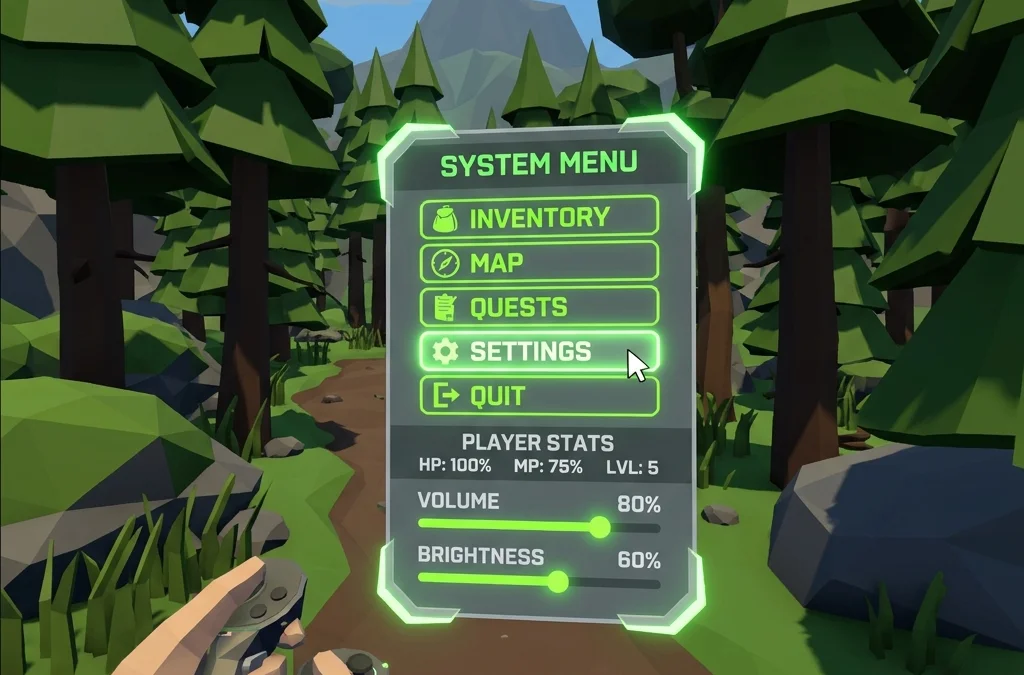
Introduction: Can You Mod Gorilla Tag Without a PC?
One of the most frequent questions from Gorilla Tag players is: “Can I mod my Quest 2 or Quest 3 if I don’t own a gaming computer or laptop?”
The answer in 2026 is yes, but with strict technical limitations. Android 12 and Android 14 operating system updates rolled out by Meta introduced “Scoped Storage” restrictions, which closed traditional file access methods. However, by leveraging Android mobile devices, web-based ADB patchers, or file extraction apps like Mobile VR Station, standalone players can still patch their game.
This guide details the exact step-by-step process to install custom maps, hats, and community modifications directly to your headset.
Method 1: Using an Android Phone with WebADB / Bugjaeger (Recommended)
If you have an Android smartphone or tablet, this is by far the most reliable PC-free method.
What You Need:
- Your Meta Quest 2 or Quest 3 headset.
- An Android phone with a USB-C to USB-C charging cable.
- The Bugjaeger Mobile ADB app (free on Google Play) or Google Chrome browser.
Step-by-Step Instructions:
-
Activate Developer Mode on Your Headset:
- Open the Meta Horizon smartphone app paired to your Quest.
- Tap Devices > [Your Headset] > Headset Settings > Developer Mode.
- Enable Developer Mode. (If you have not verified an organization, visit
developer.oculus.comto complete SMS verification).
-
Connect Phone to Headset:
- Plug the USB-C cable into your Android phone and your Quest headset.
- Put on your headset. A prompt will appear: “Allow USB debugging?”
- Check “Always allow from this computer” and click Allow.
-
Open Bugjaeger or Web-QuestPatcher:
- On your Android phone, launch Bugjaeger. It will detect your Quest serial number immediately.
- Go to the Commands / Packages tab.
- You can now install standalone
.apktools, grant all-file permissions, or push.qmodfiles directly into/sdcard/Android/data/com.AnotherAxiom.GorillaTag/files/.
Method 2: Mobile VR Station (Headset-Only Setup)
For players who have zero secondary devices, Mobile VR Station operates directly inside the Quest VR environment via the App Lab / Horizon Store.
Step 1: Install Mobile VR Station
- Inside your Quest headset, open the Meta Quest Store.
- Search for “Mobile VR Station” and install the app.
- Open the app and grant full storage permissions when prompted.
Step 2: Configure Scoped Storage Access
Due to Meta firmware updates:
- In Mobile VR Station, click Configuration Wizard > Show All Options > Configure Scoped Storage.
- Click Step 1: Request Access. This opens the native Android file selector.
- In the left navigation menu, click Quest 2 / Quest 3 storage > Android > data.
- Click the blue button at the bottom: “USE THIS FOLDER” and click Allow.
Step 3: Downloading & Copying Custom Maps
- Open the built-in Meta Quest Browser in VR.
- Navigate to GTMods.net and find the map or mod you want (make sure to download Quest-compatible
.gtmapfiles). - The downloaded file will save in your headset’s
/Download/directory. - Return to Mobile VR Station:
- Go to Local Files > Downloads.
- Click the downloaded map file > Copy / Move.
- Navigate to Android > data > com.AnotherAxiom.GorillaTag > files > CustomMaps.
- Paste the file directly into this directory.
What Works Standalone vs. What Requires a Full PC
It is critical to manage expectations regarding standalone VR modding:
| Feature | Standalone Quest (No PC) | PC VR (Steam) |
|---|---|---|
| Custom Parkour Maps | Supported (via Map Loader) | Supported |
| Cosmetic Hats & Badges | Supported (via Gorilla Cosmetics) | Supported |
| Custom Sounds & SFX | Supported | Supported |
| Advanced Cheats / Mod Menus | Limited & Highly Unstable | Fully Supported |
| Third-Person Streaming Cameras | Not Supported (Requires PC rendering) | Fully Supported |
| Monke Mod Manager Executable | Not Supported (Windows .exe only) |
Fully Supported |
Troubleshooting Standalone Quest Issues
Issue: “Can’t access Android/data folder”
In Meta Quest firmware v63 and higher, Meta blocked direct access to Android/data inside the headset file picker. If Mobile VR Station fails to show the files, you must use Method 1 (Android Phone + Bugjaeger) or a Chromebook with USB debugging to bypass the local sandbox restriction.
Issue: “Restore App” Prompt Pops Up
Whenever you launch a modified game on Quest, the Meta OS will display an alert: “Unofficial app detected. Restore to original version?”
- Never click Restore. Doing so will delete all your installed custom files.
- Always click “Open App” to bypass the prompt and run your modded game.
GTMods is an educational resource and mod testing community. We strongly advocate for fair play in VR gaming. Mods that introduce flight, speed modifications, or custom physical parameters must exclusively be run in private, modded custom lobbies. Running unauthorized modifications in public matchmaking queues violates game rules and will lead to an account ban.